

| Available on Plans |
|
|
|
Valcre allows you to import data from third-party sources (e.g., property data, sale comparables, lease comparables) directly into Valcre Online There are several methods available for importing data, depending on your data provider.
- You can manually map and import data using a CSV template for each batch of data you wish to import. Each import is limited to a maximum of 100 records.
-
Alternatively, you can purchase a custom CSV data importer service from Valcre to import data without needing a CSV template.
- For more information about purchasing a custom data importer, please contact your Client Success Manager.
This article will guide you on how to use our Data Dictionary to map your data.
Prerequisites
-
Access the Valcre Data Dictionary: Contact your Client Success Manager.
Step 1: Obtain a Valcre CSV Sample
From the Properties tab, select the checkbox next to a property record and select Export as, then choose CSV (all data).
Step 2: Map Your Data
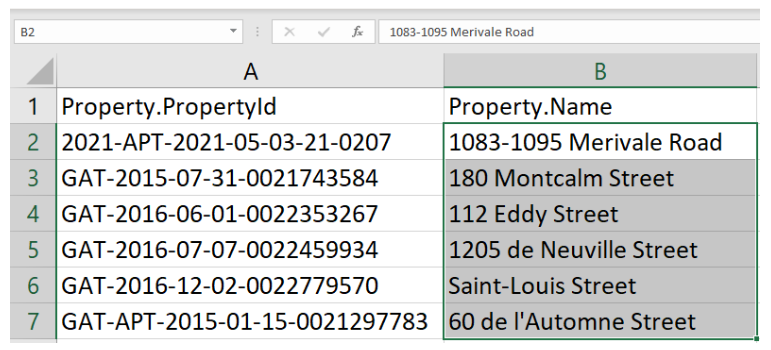
- Option 1: Copy and paste the Valcre column headers into your MLS data export file, ensuring that the relevant column headers match the appropriate data.
- Option 2: Copy and paste your data directly into the Valcre CSV file and match the appropriate data with the corresponding column headers.
|
Once imported, Valcre will verify that the property exists and create additional parcels/buildings/comps or other sub-records as needed. |
Step 3: Clean Up Your Data
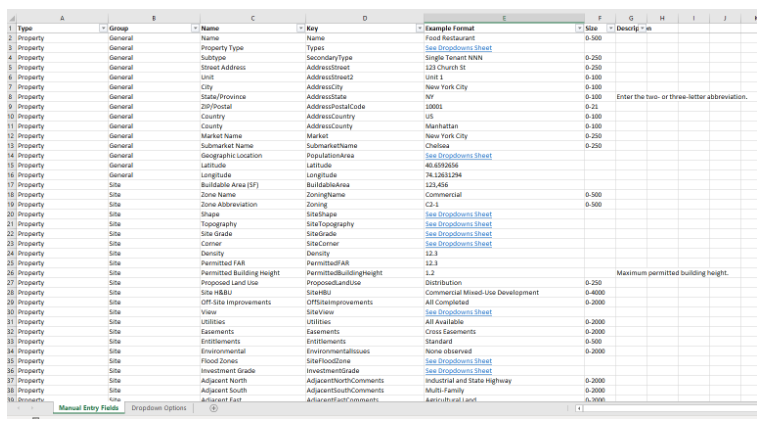
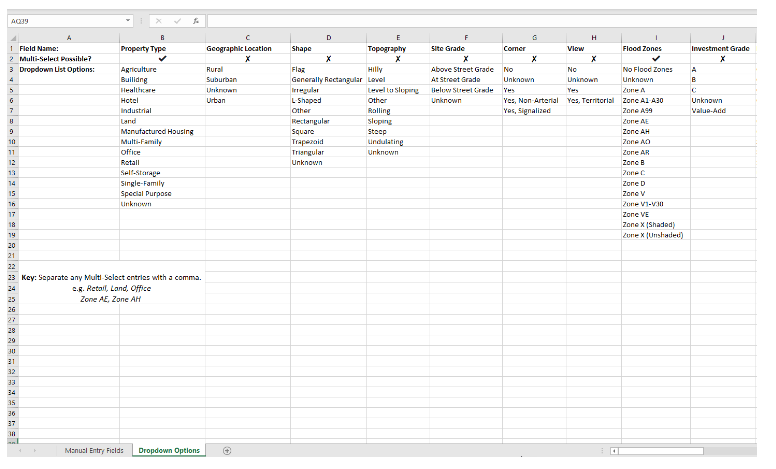
Ensure your data format aligns with Valcre's validation rules. If the format is incorrect, Valcre Online will reject your import. Use the Valcre Data Dictionary to clean your data and verify that the values match the accepted format. The Data Dictionary provides examples and character limits for each field. (Request the Valcre Data Dictionary through your Client Success Manager or our Support team.)
|
Step 4: Import Your File
Select Create New, then Import Properties.
Select Choose file, select your file, and select Import.
Once the data is successfully imported, you can find the file in the Activity section. To view a summary of the imported/skipped records, along with links to each record, click Results.
- Note: Skipped records indicate duplicates.
| Learn more about Valcre with our next suggested guide: Invoicing + Metrics |
Additional Questions? Valcre Support is ready to help with all your Valcre product questions! You can connect to us via phone, email, or chat!
Comments
0 comments